Here are the steps for image capture with SCCM:
- First you have to make a Capture Media as described in here.
- Remove PC from the domain
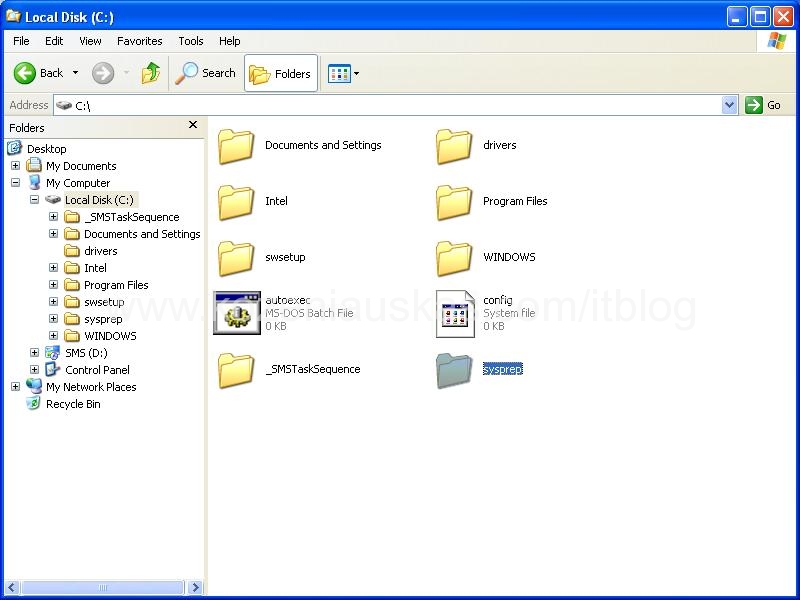
- Create a folder called sysprep in boot partition
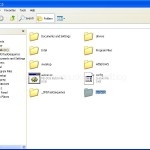
- Extract and copy the files from deploy.cab from OS media to sysprep folder
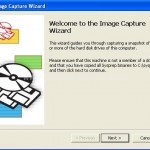
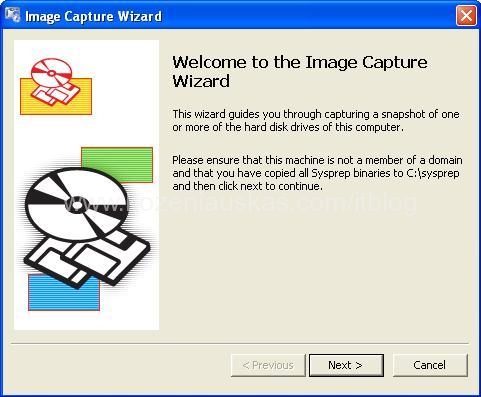
- Put the capture media into CD/DVD drive. Wait until Image Capture Wizard starts and click Next
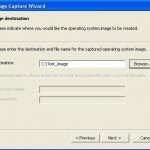
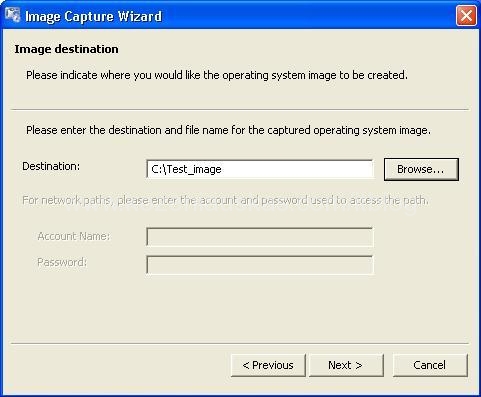
- Enter the destination and file name where you want your image to be created. You can create directly on a network share but then you have to provide login details for it.
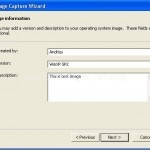
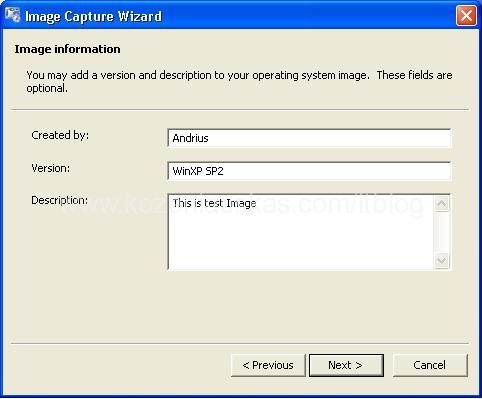
- Enter Image information
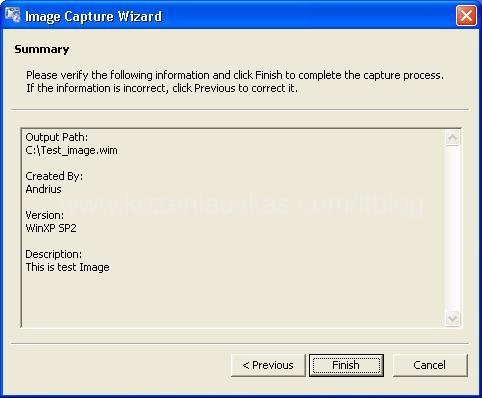
- Click Finish on the Summary screen
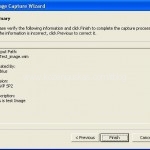
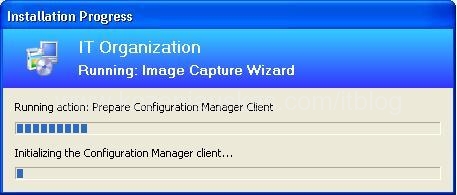
- Image capturing should start now.
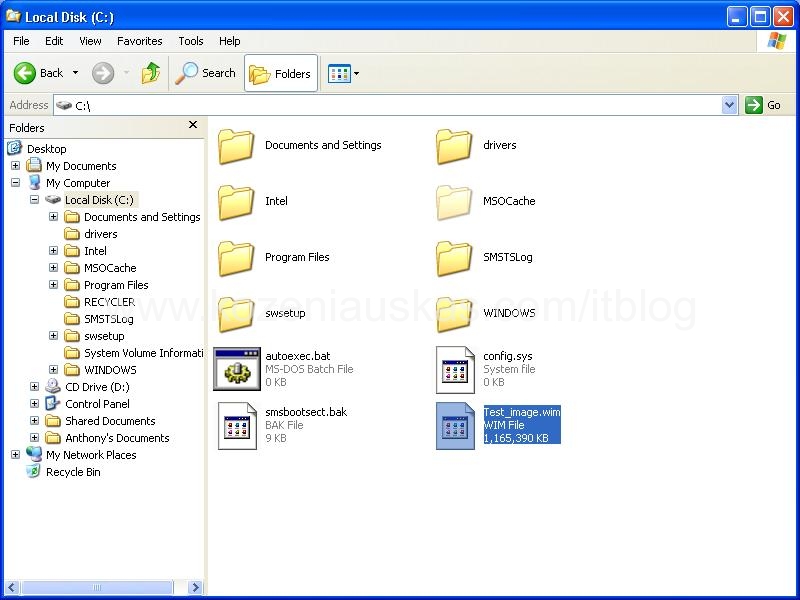
- At first Capture wizard will prepare the OS for imaging. After that PC will reboot and it will copy the image to the provided location. When copying is finished it will display a dialog screen saying that image capture was successful. Press OK and wait until PC reboots. Because the PC was syspreped you will have to provide all the information(name, serial key,regional settings etc.) as the PC was just installed. After setup is finished you should login and locate your image file.
Tags: capture, capturing, How to capture image, image, image capture wizard, OSD, SCCM

[…] System Image was created as shown in here. Here are the steps you need to complete in order to add the OS image to […]
[…] Sequence you need to have you image created and added to SCCM. Below are the links how to do that: How to capture OS image How to add OS […]
Andrius,
Is it same OS image and Boot Image? How to create Boot image windows xp sp2? ’cause I see in SCCM console only boot image for windows vista.
OS image(XP,vista,2003,2008) is the one that you are want to capture or deploy on the PC,server or laptop.
Boot image is used to deploy or capture OS image.
SCCM uses Vista kernel in their boot image. You don’t need to create a another boot image for XP SP2. The existing ones will work with xp_sp2, just select the right platform(32bit or 64bit).
Hope that helps.
Hi,
I have issue here….i have XP running on VM…and try to capture image there….
All ok until…sysprep screen popup…then its goes away and my VM is not get restart….
Can someone tell me why……
TQ
Muthu
Hi Muthu,
I’ve used VMware for capturing images and it worked fine for me. You should check task sequence log file for errors or warnings. You can find it C:\SMSTSLog\smsts.log on your VM.
Is there anything special to capturing a VM image? or is it the same steps, just in a VM environment?
Hi Tim,
The steps are the same for capturing Virtual Machines.
i word with all these steps & it stops with me @ step 8 , do not show setp 9. can you discuss
Hi Ahmed,
Do you receive any errors? Is there anything in the log file?
I hate to bother you.. but I can’t find any reference to the error msg and you are one of the few that seems to have successfully created a VM image..
I created the image in VM2004, but when i try to capture it, after the reboot i get the splash screen for SCCM, then “Initializing hardware devices” then and error box “Unable to read task sequence configuration disk. For more information contact your system administrator”
I have the VM setup to use 1500 mbs of Ram, and am using an ISO of the image capture.
Any help would be appreciated.
-tim
Hi Tim,
I think the problem is with VM2004(what kind of virtual environment is it?) most likely WinPE is missing some key drivers and this why it cannot capture image. So you need to find in the logs what is missing and add them to WinPE, but I would strongly recommend using newer virtual enviroments like VMware server or MS Virtual Server. Both of them are free. As these most likely will give you less troubles and you’ll find more support on them.
Hi
for some reason i cant manage to find the deploy.cab file can you please explain to me where i can find this
thanks
chris
Hi Chris,
for XP you can download the latest Deployment Tools from Microsot:
http://www.microsoft.com/downloads/details.aspx?FamilyID=673a1019-8e3e-4be0-ac31-70dd21b5afa7&displaylang=en
In Windows 2000/XP/2003 deploy.cab should be located in \support\tools
For Vista and Server 2008 you don’t need to use sysprep as the OS already has it.
Hello,
I followed the “SCCM: How to capture image” steps, using a VMWare ESX Machine, and taked my “XPSP2.wim”, Then I configured the TS with the new “XP2SP2.wim”. The TS apply the new .wim but when the sccm have the first restart, the process not continue. I review the smsts.log and I the log say the restart process failed. Do you think idea about what’s wrong?
Your instructions threw me at first: “3.Create a folder called sysprep in boot partition”
I think your instructions should read, “3.Create a folder called sysprep in the system volume”
According to Microsoft the Boot Volume is the WINDOWS\System32 folder:
http://support.microsoft.com/kb/314470
Can this process by used to capture current images already in the environment? Meaning if I am trying to capture a current image and store it on a network share can this be done in a task sequence?
Dear people,
I need to ask you about an issue that is not clear yet to me.
I am imagig a win xp sp3 pc AMD Athlon 64 and i use de capture CD as you did show in this page. i do place de image on the \\SCCM\Capture$.
As this is an image from AMD athlon 64, do i need to use the boot image x64?
Thanks for your wonderful blog.
cheers, Hamid
WinPe image must match the OS image. So if you are trying to install 32 bit OS then you need to use x86.
If you are trying to install 64bit WinXP SP3 then use x64 winpe.
Hi there,
thank you about the great and easy instruction. I’ve done my WinXP wim but i guess sysprep isn’t working properly cause after the restart of the reference machine i don’t have to type the serial again, just the computername and the admin pass. The next thing is after packaged and advertised the wim everything works fine, but the domain join don’t work. Do u have any ideas what went wrong?
thanks a lot it has helped to resolve my capturing image part of the win 2003 server.